Action Flow Control
Flow control can be added from the ‘Flow Control’ tab using the + button as shown below.
It adds a row where the condition can be defined.
‘Action’ drop-down has options to control the flow.

Default Flow Control can be added using the Condition drop-down.
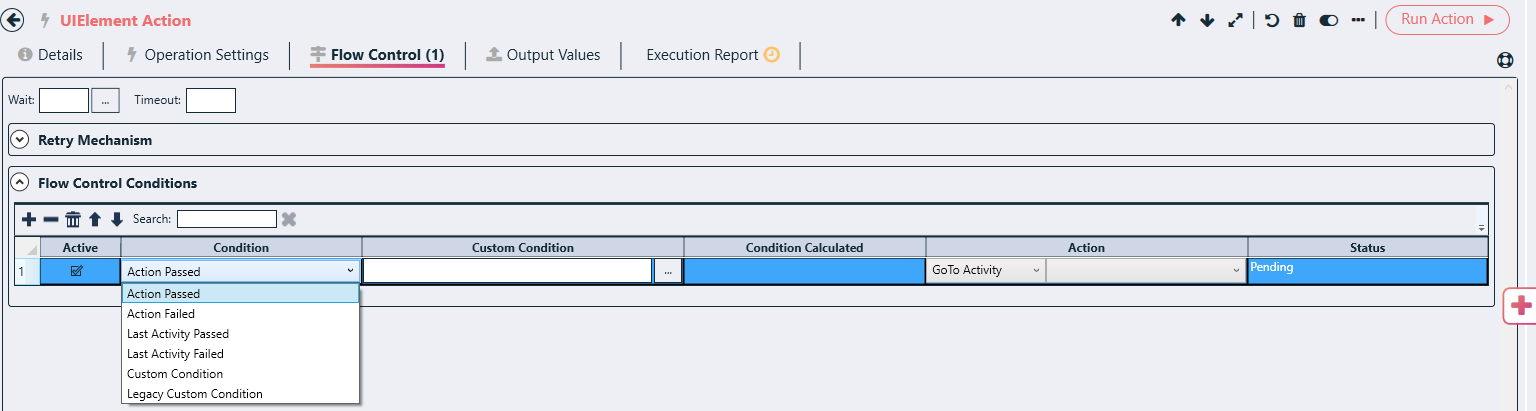
Eg.

Variables can be used using the ‘…’ button as shown below:-

Action drop-down: -
Go to Action: - this will enable another drop down beside it to select the list of Actions from the solution.

Go to Activity: - this will enable another drop down beside it to select the list of Activities from the solution.

Go to Activity by Name: in this user can type the name of the activity which needs to be executed.
Go to Next Action: - will take the flow to the next action.
Go to Next Activity: - will take the flow to the next activity.
Rerun Action: - executes the Action again.
Run shared Repository Action: - this executes the action from the shared repository. Action name is given in the field as shown below.

Set Failure to be Auto-Opened Defect: - if the action fails, then Ginger will automatically open defect in ALM. For the ALM Connection Details and the Defect Profile must be created.

Set Variable value: - to set a value of a variable as shown below

Show message box: - when the given condition will be met, then we can direct Ginger to display a pop-up message during the execution.
Stop Business Flow: - this will stop the complete execution of the Business flow.
Stop Run: - this will stop the currently executed Action/Activity.