Action Outputs Simulation
Overview
Simulation Mode allows Ginger end-users to simulate required outputs from services that are either not yet implemented or
temporarily unavailable (web services, portals, etc.). The mode is available for all Ginger Platforms and all Ginger Actions.
Configuration
Action Level configuration
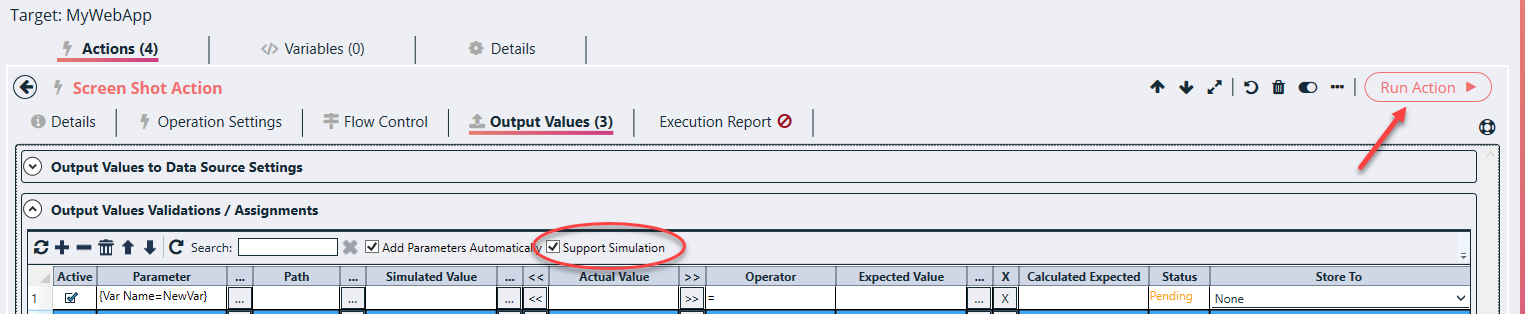
Open the action for which you want to simulate output, and go to the ‘Output Values’ tab
By default, the ‘Support Simulation’ checkbox is unmarked, by checking the checkbox the view of Output Values fields will change, 3 new
columns will be added to the view: “Simulated Value”, “…”,” <<”:
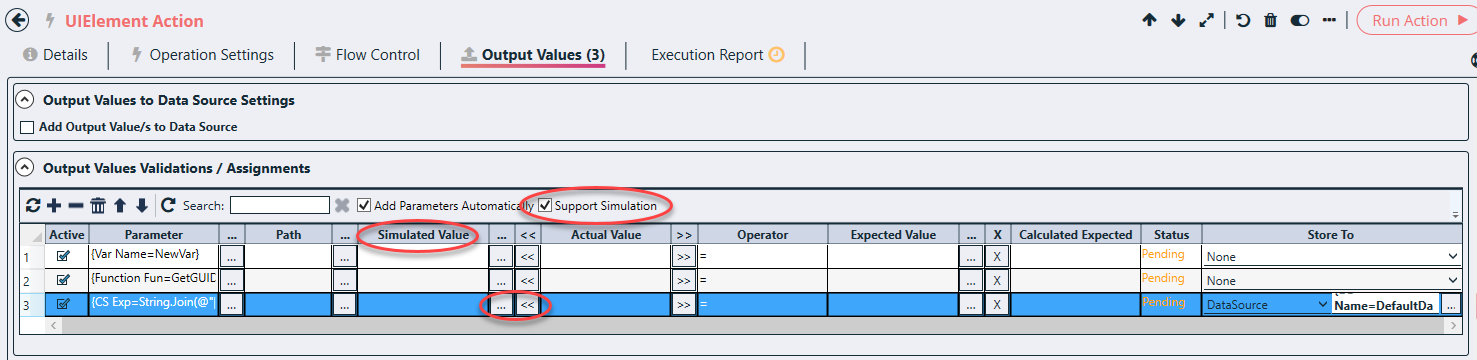
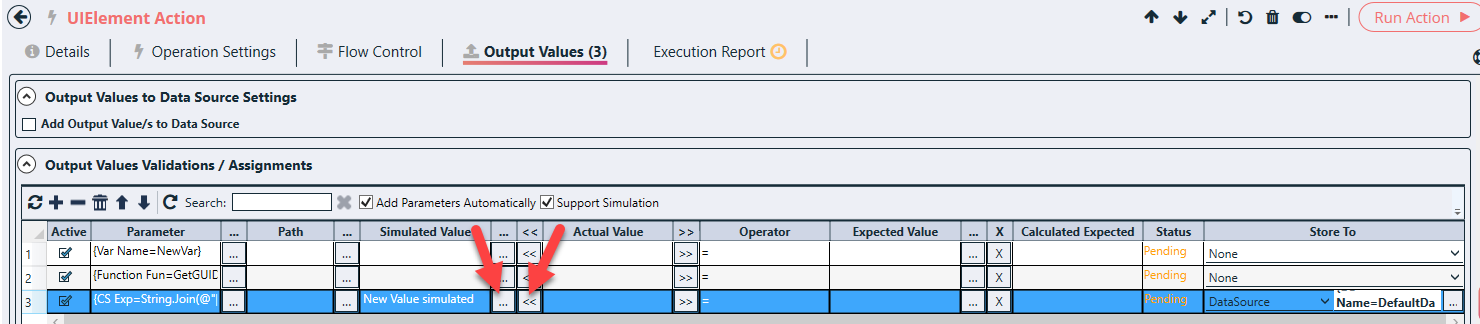
The user can populate the “Simulated Value” field manual or use the “…” to populate the field using the Value Editor Expression window.
Another option is to use the” <<” button to copy the actual value field to the “Simulated Value” field.
Automate Tab Level configuration
Go to Automate tab Option under Business Flows on the top right-hand side corner

Then click on the All Execution Configuration icon as shown below

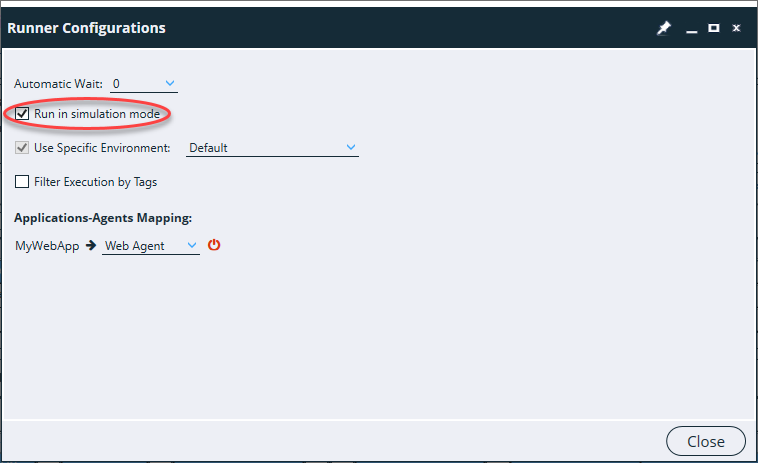
Below Runner Configurations screen will be popped up. Select the check box of “Run in simulation mode”.
Ginger Runner Configuration
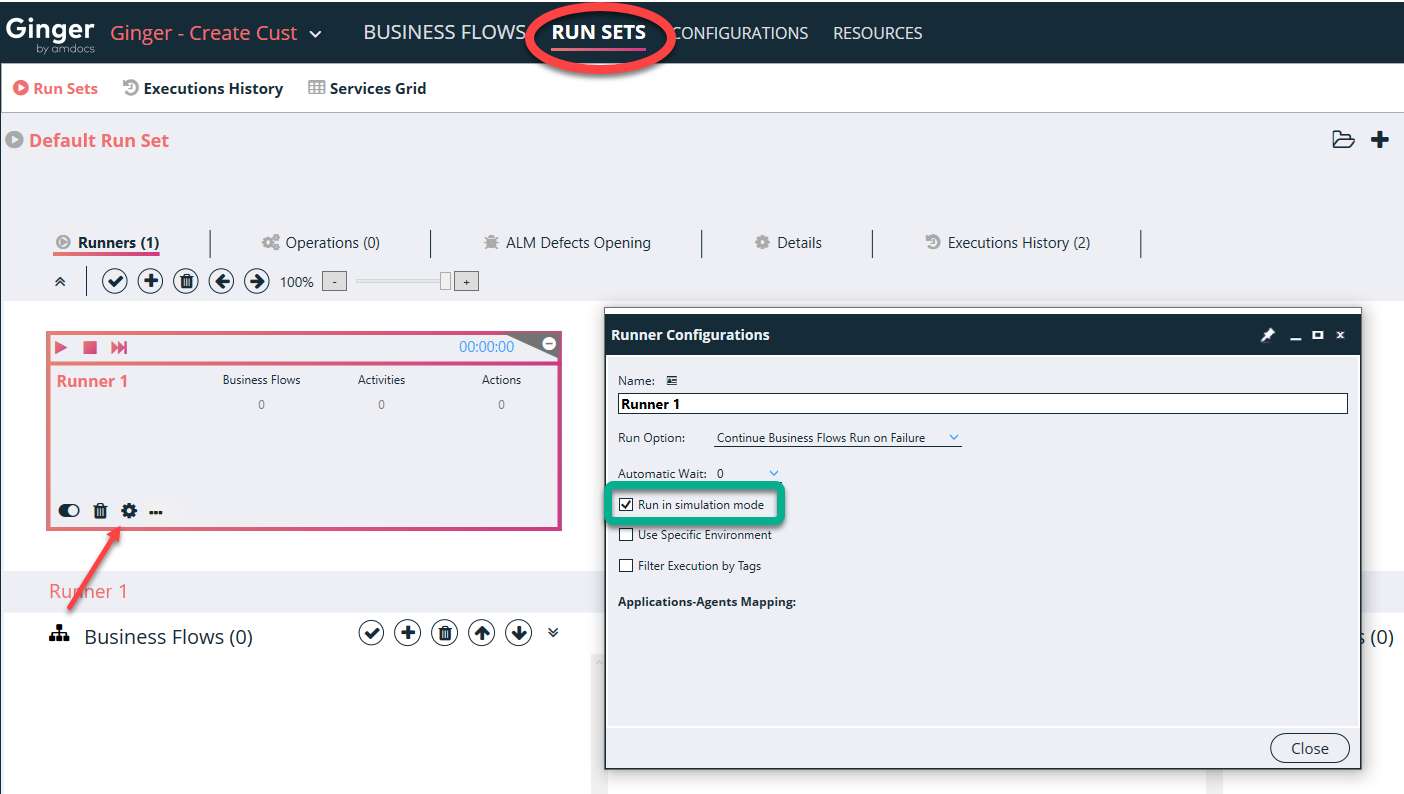
Go to ‘RUN SETS’ and click on Configure Runner icon, pop up screen for Runner Configurations open, then select the
check box of “Run in simulation mode”.
Execution
Action Level
At this point, if the action will not be executed. Ginger mechanism will copy the value from the ‘Simulated Value’
column to the ‘Actual Value’ column and will compare its value to the one populated in the ‘Expected Value’
column. The action will not be executed but rather based on output validation the action will be Passed/Failed

When the ‘Support Simulation’ checkbox is marked, and the user clicks on ‘Run Actions’ it will execute the action in simulation mode.