Expanding TitleExpanding Title
Action Output Values
Introduction
When an Activity Action is executed, the output contents, if any, are displayed in the ‘Output Values’ tab. The output values are displayed only after the Action is Run.
And the output values gets saved only when there is value in Expected or in Store To. Below is the output value screen.
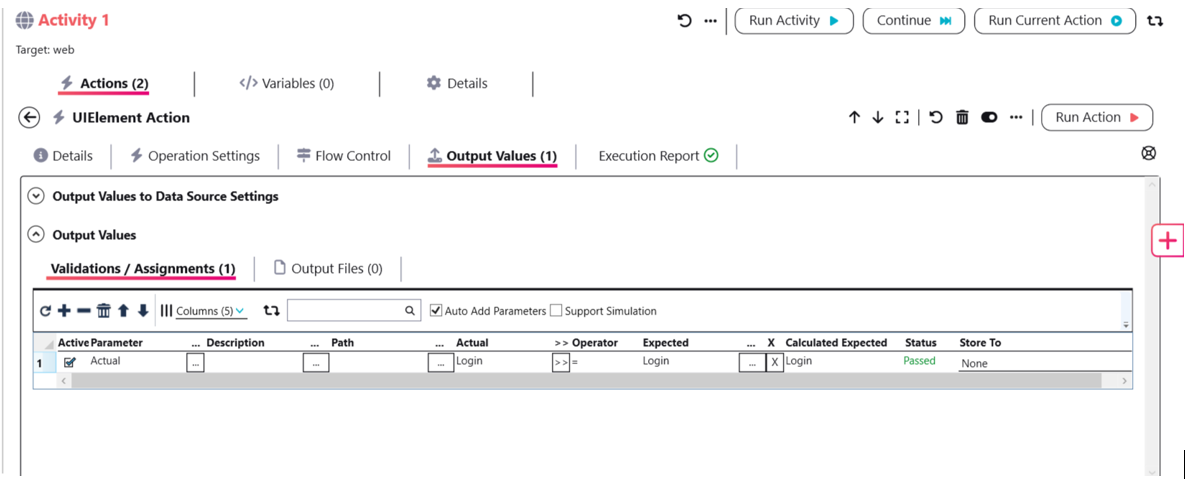
Active Check Box Column
- When this check box is checked for a particular row, the variable condition gets executed at run time
- If the user does not want to execute the condition for a particular row, they can uncheck it. This way, the condition will not execute during runtime
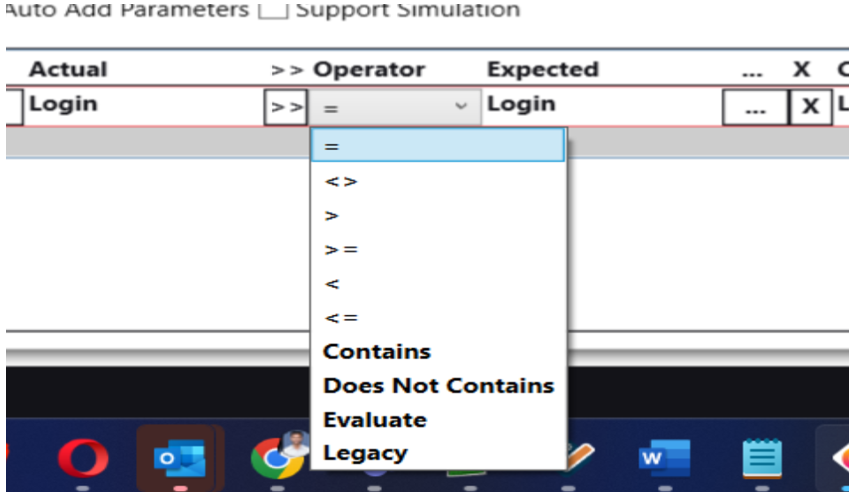
Operators
- Mathematical Operators: Require numerical values for comparison between the Actual Value and the Expected Value.
- Evaluate Operator: Used when evaluation is required while comparing the Actual Value and the Expected Value.
- Example: Click on the ‘…’ button and enter a value expression in the expected value. This will be evaluated during run time for comparison between actual and expected values.
- Legacy Operators: All operators used before version 3.1 will work as expected.
Store To
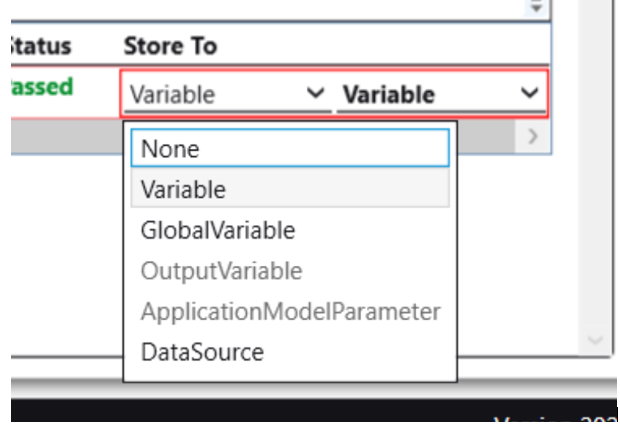
This functionality allows the user to store the output value either in a variable or in a data source.
Variable
- When Variable is selected, all the Business Flow and Global variables of type String will be displayed in the drop-down for selection.
- When the Action is Run and Passed, the output value will be stored in the selected variable.
DataSource
- When the DataSource option is selected, the ‘DataSource Expression Editor’ screen is displayed.
- Users must select the desired DataSource table and the Cell Identifier.
- When the Action is Run & Passed, the output value is stored in the cell that satisfies the given condition.
- Note: Values can be stored either in the default Customized table of the DataSource or a new customized table can be added in the Data Sources area under the Resources tab.
Application Model Parameter
- This is used when the user wants to save the output value to one of the Application Models Global Parameters.
- Below is the screen where the Application Models Global Parameters are added.
Description Column
- This field is used to store information about the parameter.
- The information will be displayed in the Execution report.
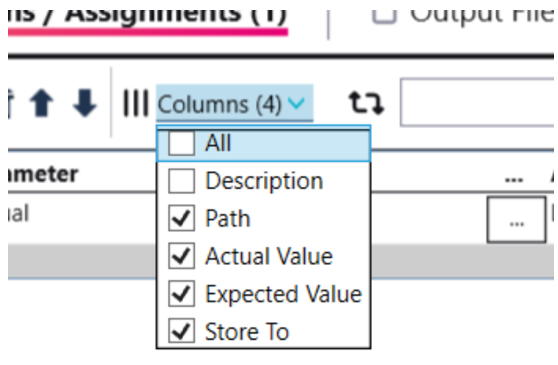
- This column is hidden, user can make it visible from Choose optional Column
Choose Optional Column
- Users can hide or show grid columns by clicking on the multi-select combobox from the grid menu.
Type your dropdown text here